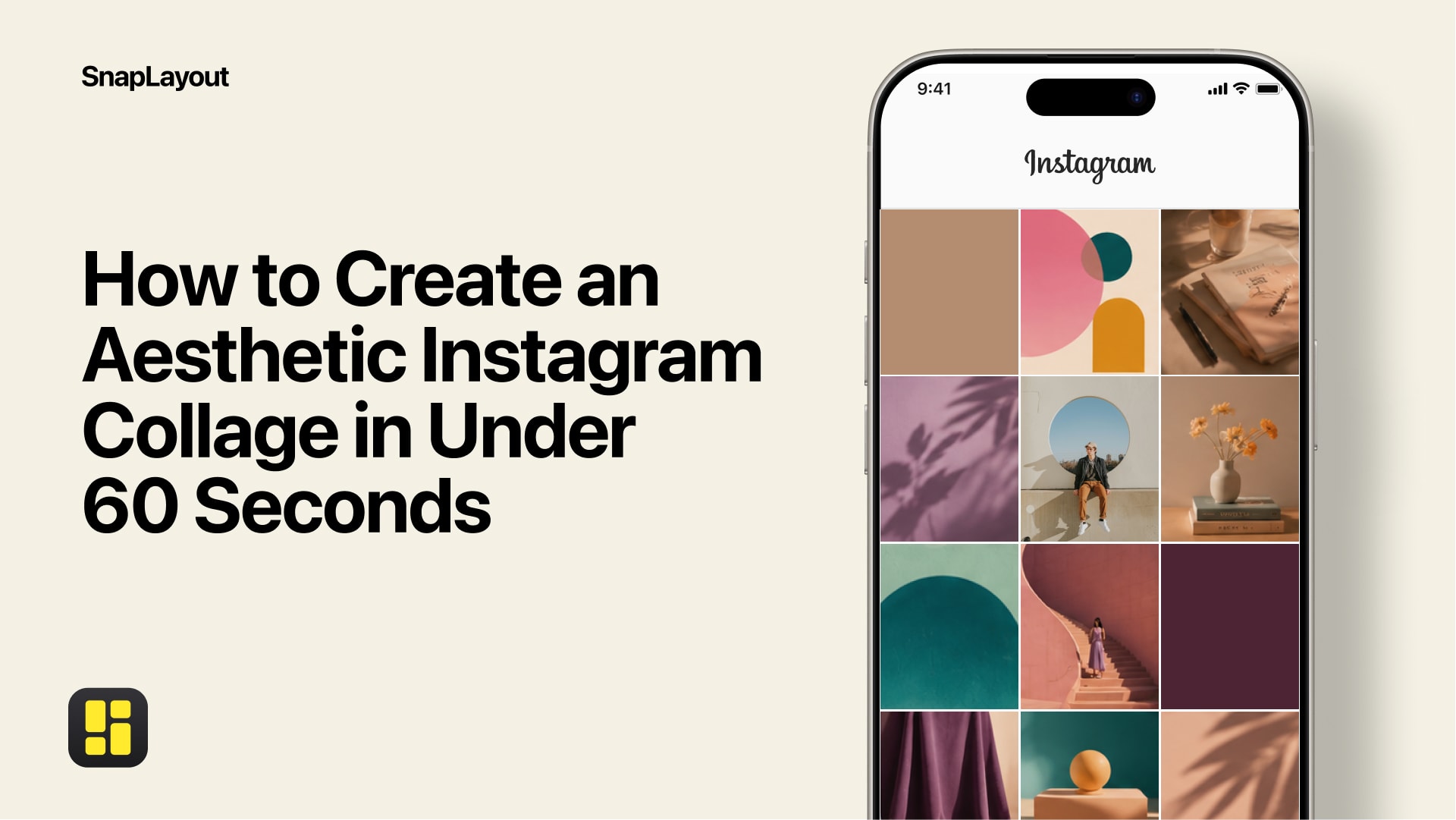
Your Instagram grid is your portfolio. It's the first thing a potential follower sees when they land on your profile — and you have about three seconds to make an impression. A well-designed photo collage can stop the scroll instantly. The good news? With SnapLayout, you don't need a design background or hours of editing time. Here's how to do it in under 60 seconds.
What makes a collage look "aesthetic"?
Before we get into the steps, it's worth understanding what separates a beautiful collage from a cluttered one. Three things matter most:
- Consistent color palette — photos that share similar tones and lighting feel like they belong together. Edit them together before you arrange them.
- Visual hierarchy — one photo should anchor the layout. The eye needs somewhere to land first, so give your strongest shot the most prominent cell.
- Breathing room — tight grids can feel overwhelming. A little spacing between panels makes the whole thing feel intentional rather than crammed.
SnapLayout's grid layouts are built around these principles. Pick any arrangement and the structure does the heavy lifting.
Step 1 — Choose your Instagram format
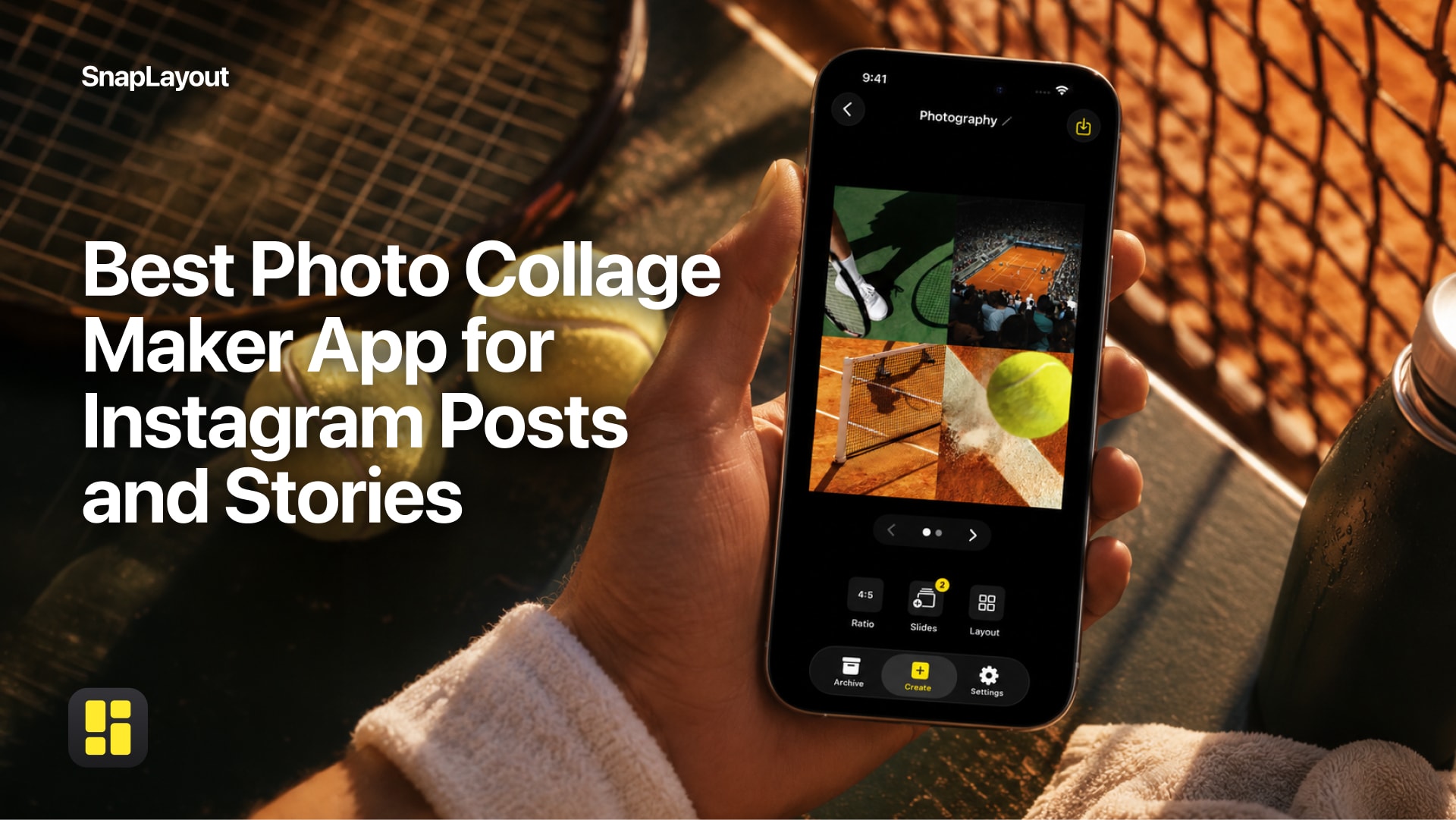
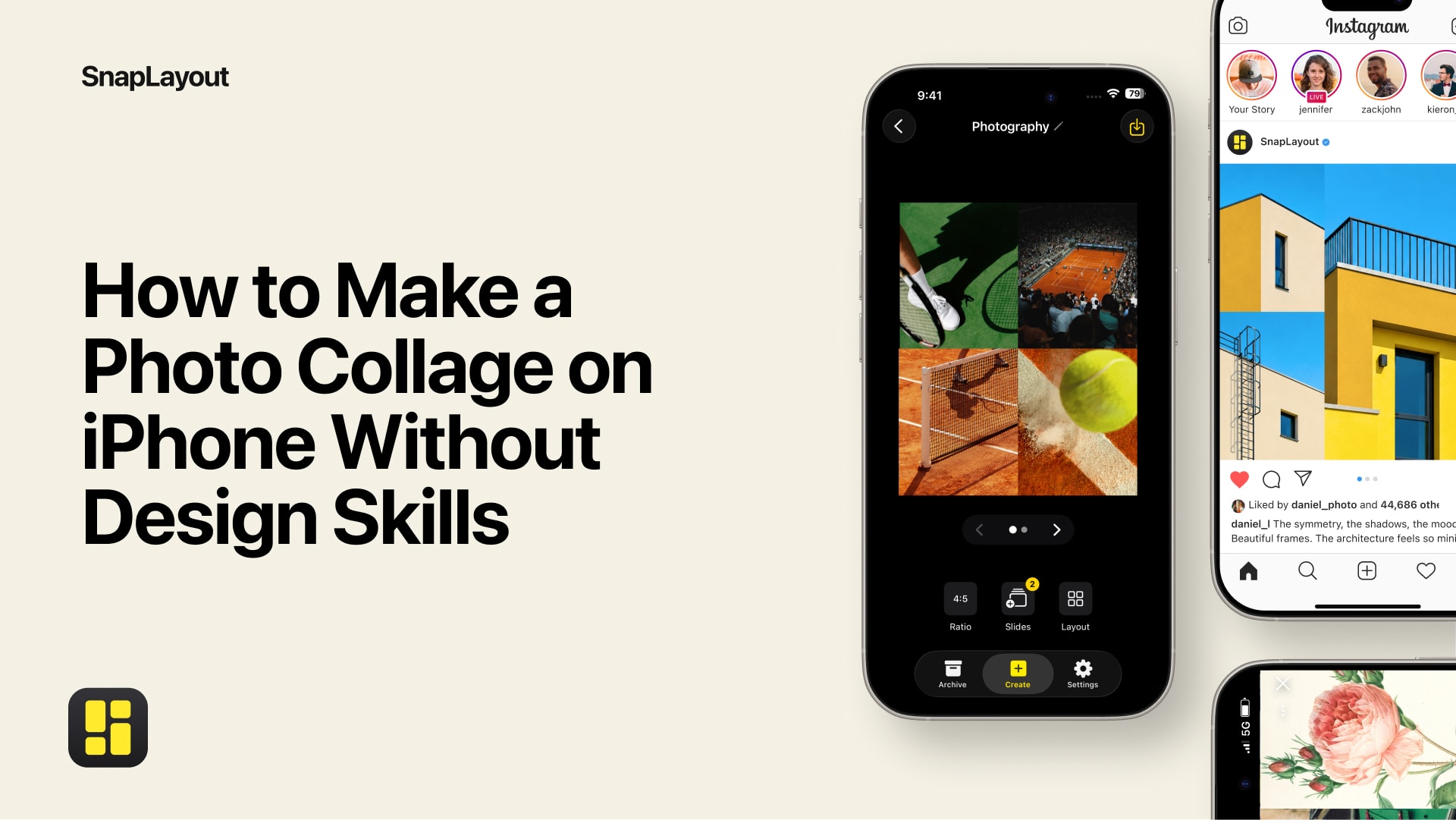
Open SnapLayout and tap the + button to start a new project. Your first decision is format — and it matters more than most people think.
- Square (1:1) — the safe classic. Works everywhere in the feed.
- Portrait (4:5) — takes up more vertical screen space, which means more attention. This is the format that performs best for feed posts in 2026.
SnapLayout sets the canvas dimensions automatically when you pick a format, so you never have to think about pixels.
Step 2 — Pick a grid layout
With your format set, choose a layout. SnapLayout offers a range of grid arrangements — side-by-side splits, asymmetric panels, equal-cell grids, and more. For an aesthetic look, layouts with a clear focal point (one large cell alongside smaller supporting panels) tend to work best. They let one strong image lead while the others add context.
Tap any layout to apply it instantly. You can switch to a different one at any point without losing your photos.
Step 3 — Add your photos
Tap a cell and select a photo from your camera roll. Once it's placed, pinch and drag inside the cell to reposition or zoom until the crop looks right — no awkward auto-crops. Repeat for each panel.
For the best results, choose 3–4 photos that share similar lighting. Golden-hour shots work together naturally; mixing them with harsh midday shadows tends to break the mood. When in doubt, edit your photos to a consistent exposure and color temperature before building the collage.
Step 4 — Fine-tune and adjust
Once your photos are in place, step back and look at the whole composition. A few quick adjustments can make a big difference:
- Swap panels — if the layout reads better with photos in a different order, tap and rearrange.
- Adjust the background — SnapLayout lets you change the space between cells and the background color. White creates a clean editorial look; black adds drama.
- Check your crop — zoom into each cell and make sure the subject is centered and nothing important is cut off.
Step 5 — Export to your camera roll
When you're happy with the result, tap Export. SnapLayout saves the finished collage directly to your iPhone's camera roll at full resolution. From there, open Instagram, tap the + to create a new post, and select your collage from your library the same way you would any photo.
A premium subscription (managed through Apple) is needed to export your collages at full resolution.
Total time from opening the app to having a finished collage in your camera roll: typically 45–90 seconds once you know the workflow.
One more thing: format-switching
If you build a collage for a square feed post and then realize it would look better as a portrait post — or want to reuse the same layout for a Story — you can switch formats in SnapLayout without starting over. Your photos stay in their panels; the canvas just resizes. It's a small feature that saves real frustration when you're creating content for more than one placement.
Quick recap
- Open SnapLayout → tap + → choose Instagram format (square or 4:5 portrait)
- Pick a grid layout with a clear focal point
- Add 3–4 photos with consistent lighting; pinch to reposition each crop
- Adjust panel order, background, and spacing as needed
- Export to camera roll → post from Instagram as normal
That's genuinely all there is to it. Download SnapLayout free and build your first collage today.